
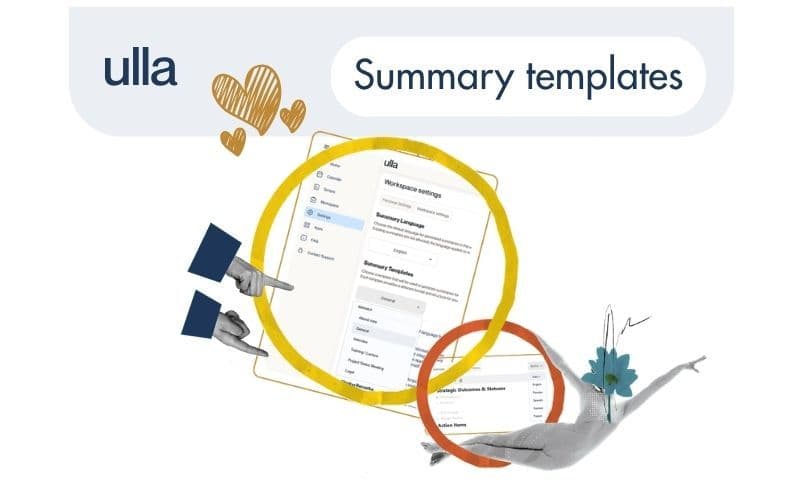
We've added two new settings that give teams more control over how meeting summaries are generated and presented.
Choose a summary template for your workspace
Different teams document meetings differently. A legal team needs a structured attendance note. A project team wants a status update format. A training session calls for something else entirely.
Workspace admins can now set a default summary template that automatically applies to every new script created in the workspace. No extra steps for the team - the right format is just there.
Available templates:
- General - a standard summary covering key points, action items, and closing remarks
- Attend note - a formal attendance-style record, useful for legal and professional services
- Interview - structured for interview or assessment sessions
- Training/Lecture - designed for learning sessions and knowledge-sharing calls
- Project Status Meeting - focused on outcomes, blockers, and next steps
- Legal - structured format suited to legal consultations and case discussions
Each template has a preview so you can see the format before applying it.
How to set it up
- Go to Settings
- Select Workspace settings
- Scroll to Summary Templates
- Choose a template from the dropdown - a preview will appear below
- Hit Save
From that point on, all new meeting scripts in your workspace will follow the chosen template.
Set a default summary language for the workspace
Workspace admins can also choose the default language for summaries across the whole team. This is set once and applies to all new scripts automatically.
To configure it, go to Settings → Workspace settings → Summary Language and select the language from the dropdown.
Translate a summary for a specific meeting
On top of the workspace-level default, any user can generate a summary in a different language for an individual script - without changing the workspace settings.
This is handy when you need to share meeting notes with someone who works in a different language, or when a specific call needs to be documented in a particular language.
How to use it
- Open Scripts in the left menu
- Select the meeting you need
- Go to the Summary tab
- Find the language selector in the top right - it shows Auto by default
- Open the dropdown and choose your language (English, Russian, Spanish, German, or French)
- Wait a moment while Ulla generates the summary in the selected language
The original transcript is not affected. Only the summary is rendered in the chosen language.
These settings are available now. If you manage a workspace, it's worth a quick visit to Settings to choose the template and language that works best for your team.