
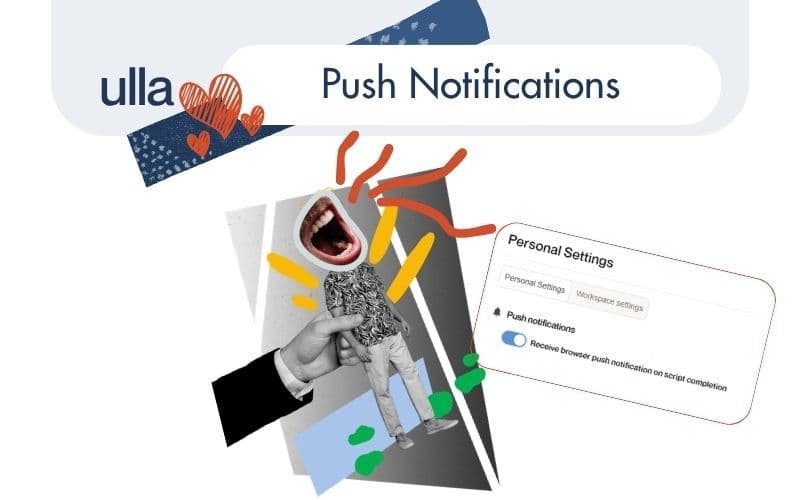
We are pleased to introduce a new feature designed to keep your workflow moving without the guesswork: Firebase Push Notifications are now live for all Ulla users!
In a busy workday, every minute counts. Previously, you might have found yourself manually checking the dashboard to see if your transcript was ready. With this update, Ulla brings the information to you.
The moment your meeting script is processed, you will receive an instant notification. This allows you to dive straight into the text, share specific segments with your team, or verify key details the second they are available - removing the need to keep an eye on your inbox or dashboard.
How to enable them
Setting up your notifications is straightforward and takes less than a minute. To get started:
- Open your Ulla dashboard.
- Navigate to Settings.
- Select Personal Settings.
- Toggle on Push Notifications.
Once you have switched this on, your browser or device will ask for permission to show notifications from Ulla. Simply click "Allow" and you are all set.
You can now stay focused on your next task with total peace of mind, knowing that Ulla will ping you the moment your script is ready for review.
________________
Troubleshooting: If you are not receiving notifications
If you have enabled push notifications but aren't seeing them, please check the following settings:
1. Browser Permissions Ensure notifications are allowed for our website in your browser settings:
- Chrome: Settings → Privacy and Security → Site Settings → Notifications
- Safari (macOS): Safari → Settings → Websites → Notifications
- Firefox: Settings → Privacy & Security → Notifications
- Edge: Settings → Cookies and Site Permissions → Notifications
- Action: Set uk.ulla.bot to Allow.
2. System Settings Check that notifications are enabled for your specific browser within your operating system:
- macOS: System Settings → Notifications → [Your Browser] → Allow Notifications
- Windows: Settings → System → Notifications → [Your Browser] → On
3. Other things to check
- Focus / Do Not Disturb: Ensure these modes are turned off, as they often silence incoming alerts.
- Reset: If the issue persists, try turning notifications off and then on again within the Ulla app settings.